Sign in Matrx via SSO
Prerequisites
- Available for Ultimate plan accounts only
- Only users on Matrx versions 1.26 or higher can use this feature.
Get enterprise domain
Enterprises typically choose domain names that are related to their company name, business operations, or brand. Common suffixes are .com and .cn. Thus generally, your company domain name is the suffix of your company email address.
If it’s not, please contact members who have completed SSO in your enterprise or your administrator to confirm your company domain name.
Sign in Matrx via SSO
If your company has configured and enabled SSO (Single Sign-On), you can log in to Matrx using an internal company account configured by the administrator without registering a Matrx account.
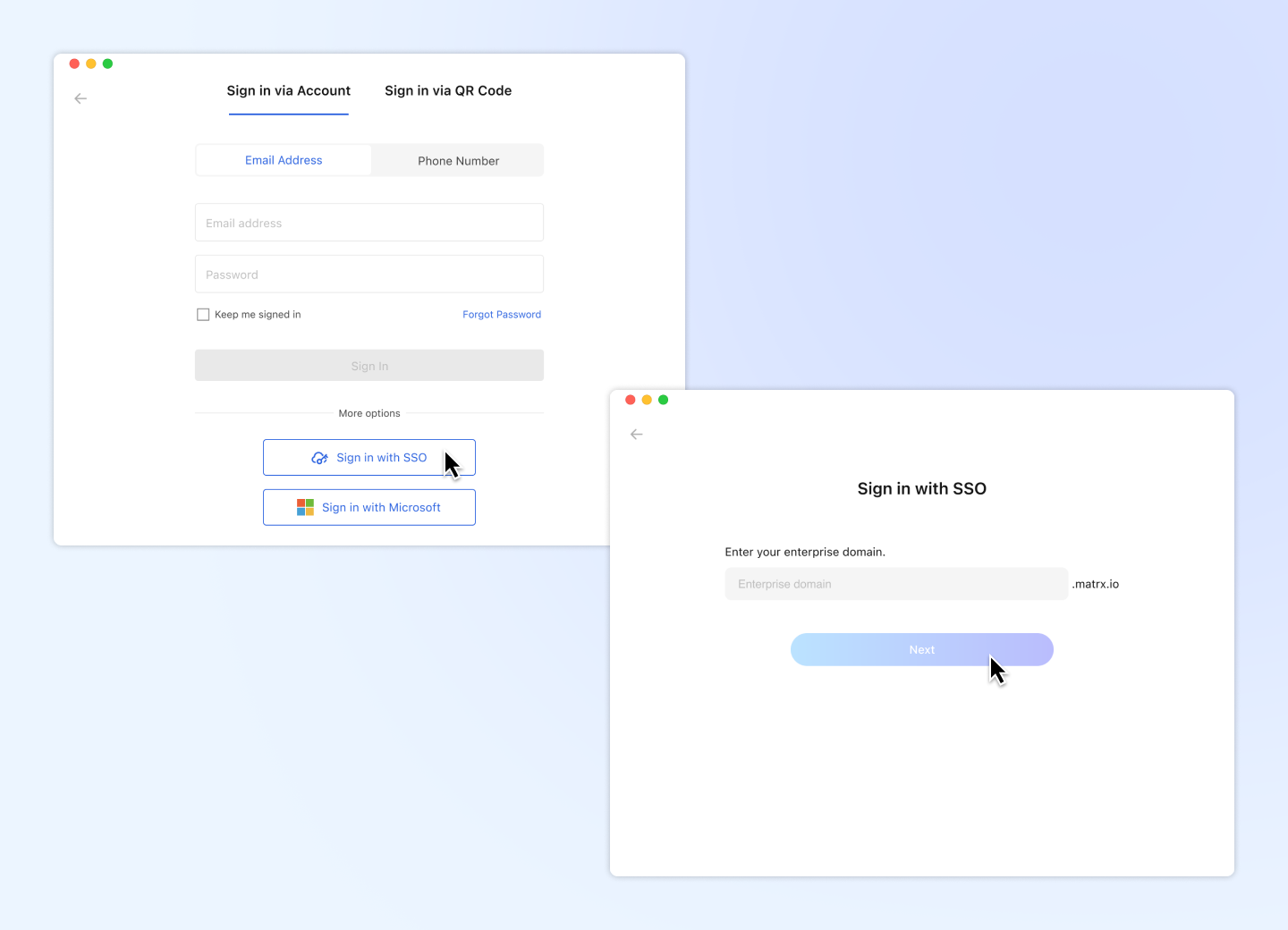
Sign in via SSO on desktop
- Go to Sign in -> Sign in via Account, and click Sign in with SSO
- Input your enterprise domain and click Next
- Follow the on-screen prompts to enter your username, password, and verification code to log in.
- Then return to Matrx. And you will have successfully signed in.
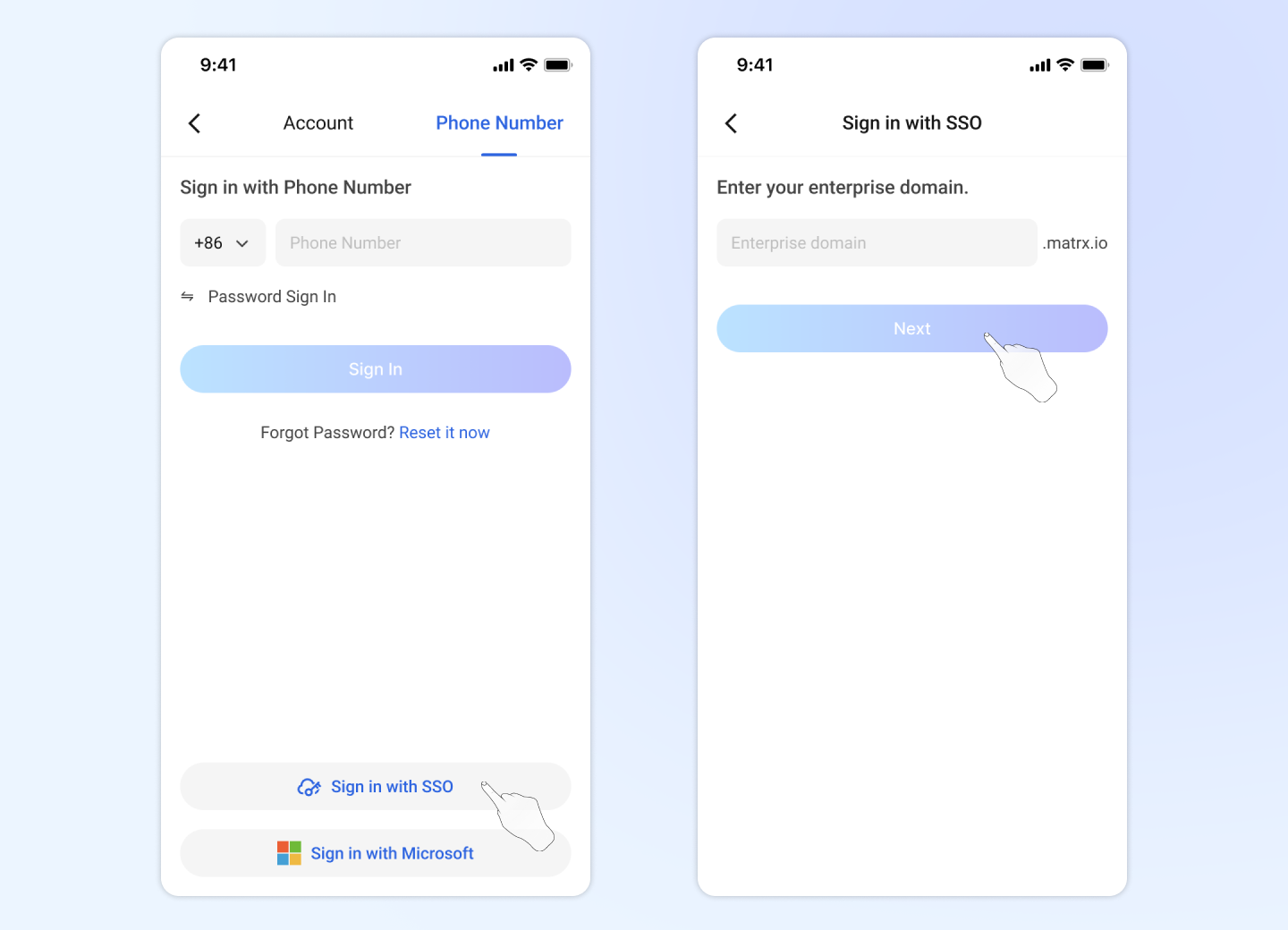
Sign in via SSO on mobile
- Go to Sign in, and click Sign in with SSO
- Input your enterprise domain and click Next to Sign In
- Follow the on-screen prompts to enter your username, password, and verification code to log in.
- Then return to Matrx. And you will have successfully signed in.
Q&A
Will the chat history remain if I had an exsiting account?
If your exsiting account it the same as the UPN in Microsoft Entra, then Yes. ⚠️If your Matrx exisiting account is not the same as the UPN. You need to change your account to the UPN BEFORE sign in via SSO.
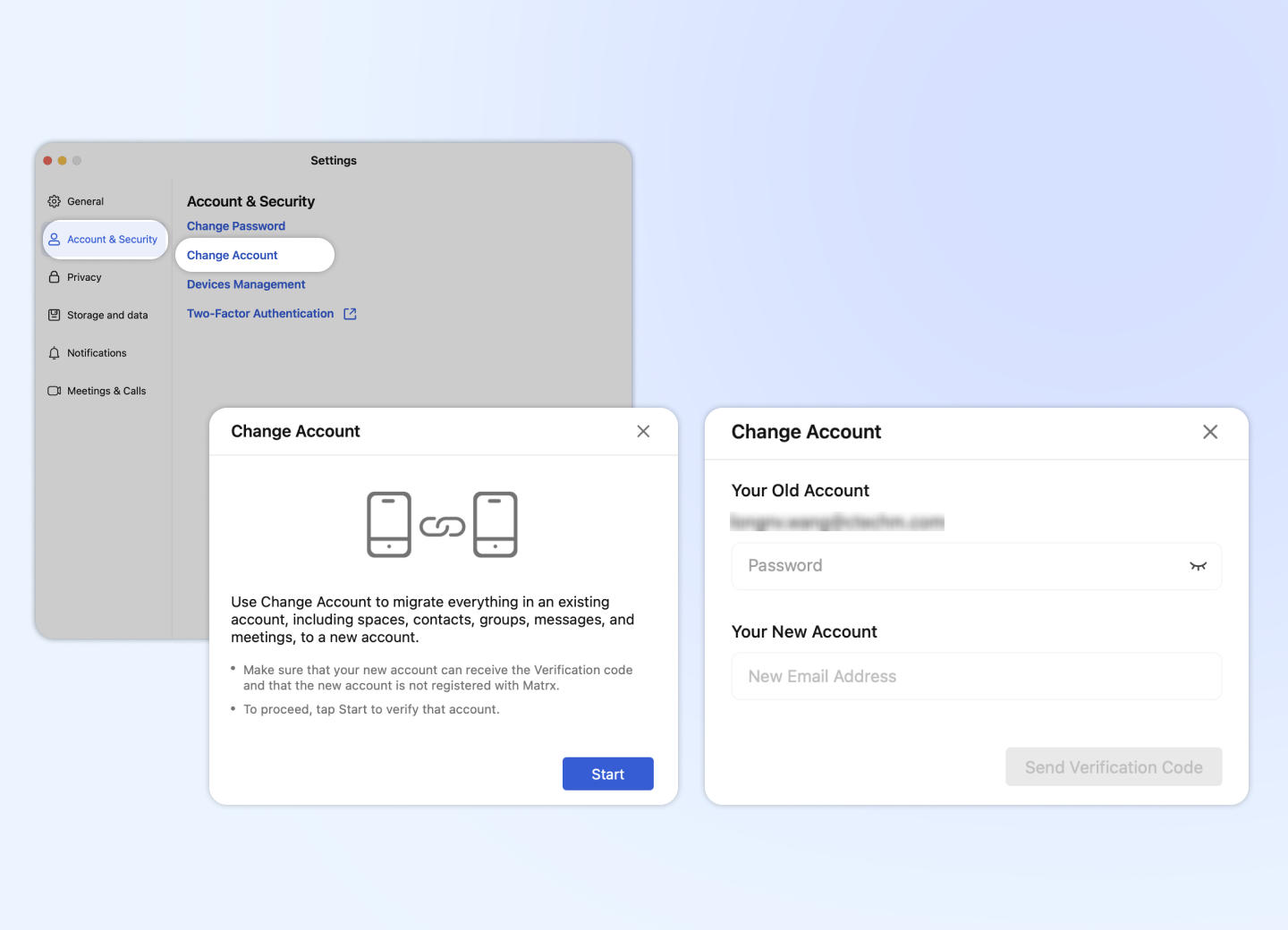
You can follow the below steps to Change Account ⚠️Do this BEFORE sign in via SSO
- Go to Settings -> Account & Security
- Click Change Account, and start the progress
- Input the UPN as your new account, verify the code and change the account
How should I enable SSO?
SSO feature is only available for Ultimate plan accounts only. Please contact your customer manager to enable this. And check this article to finish the configuration Configure Matrx for Single sign-on with Microsoft Entra ID